Last reviewed: 27 May 2026
XX5 Guide to Opening and Loading Mobile Games
This page concentrates on opening and loading games after setup; APK installation is discussed only where it directly affects access.

Opening a title
Separate app setup from game loading
The phrase “game download” can mean installing the app, opening a title or waiting for its assets to load. Here, the focus is game access and loading faults after setup is complete.
Use the APK guide if Android setup is unfinished. When the app itself opens but a game stalls, investigate phone performance, temporary data and the network rather than reinstalling immediately.
- Open the app or supported browser version
- Confirm the account is signed in before choosing a game
- Choose one title and let it load fully before doing anything else
- Remain on the same network while the game is loading
App versus browser
Review game access through the browser and app
The browser can be useful for a quick check, while the app may offer more consistent navigation. Before assuming the service is unavailable, choose according to the device, connection and account flow, and test both paths.
If the browser works but the app is slow, clear only the relevant browser data and use a reliable connection. For app access, keep the version current and leave adequate available storage.
Phone performance
Review phone and network conditions before treating the game as faulty
The first game load may stall when memory is low, battery saving is restrictive or the network changes. Congested mobile data can make the delay more noticeable.
Perform one controlled test: restart the app, open only one title, stay on the same network and allow loading to finish. If that game alone continues to fail, report its exact name and the error time.
- Close heavy apps running in the background
- Keep enough storage available for game files and updates
- Disable restrictive battery saving while a game is open
- Report the exact game name and visible error rather than only saying it failed
Session planning
Plan limits and use controls carefully
Decide the session duration and spending boundary before opening a game. Planning these limits first also reduces rushed taps, repeated reloads and confusion around wallet or reward labels.
If a wallet or profile page freezes, wait for it to respond before touching the control again. Repeated taps during lag can make the recorded action unclear.
Visual walkthrough
XX5 Game Access and Loading Screen References
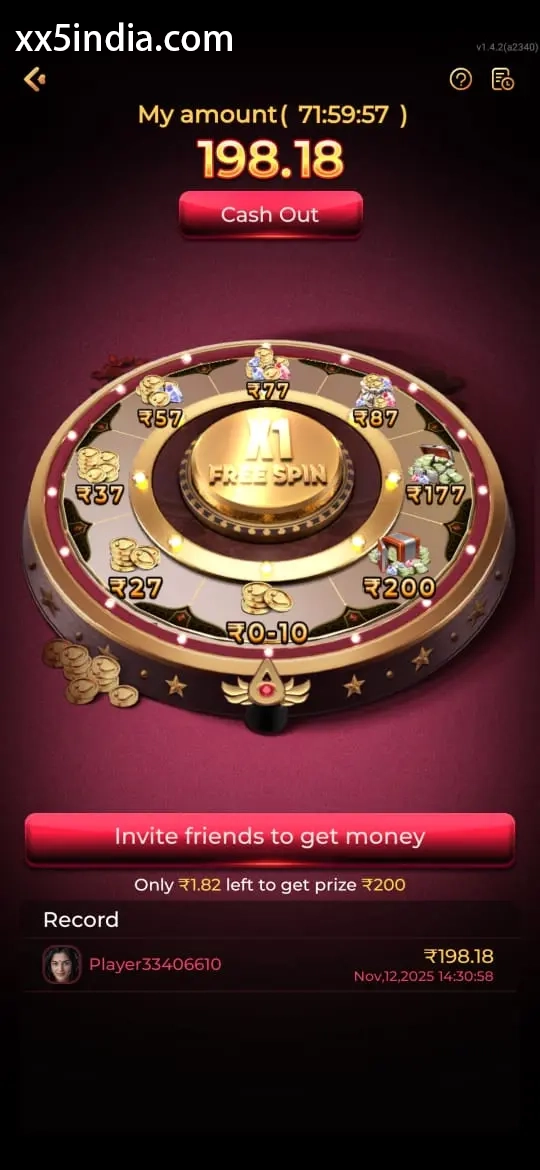
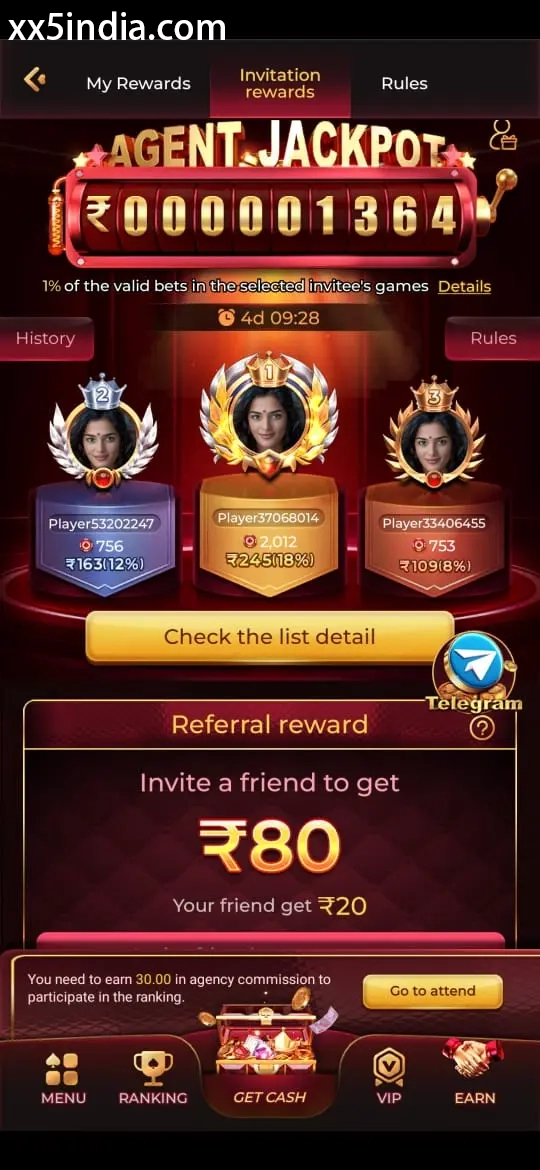
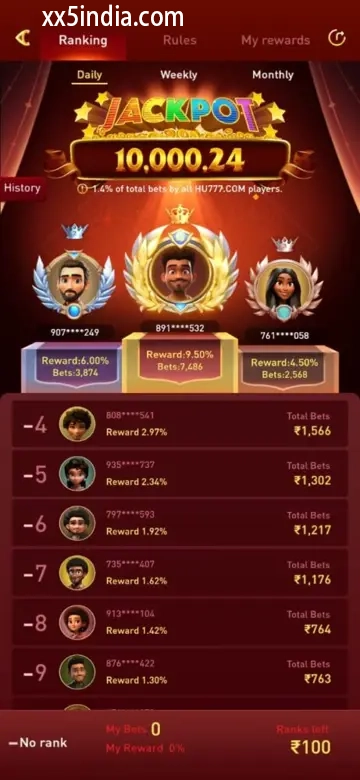
Treat these images as layout references only; always follow the current prompts shown on your own phone.
Recommended next steps
Choose the guide that matches your issue
Sign-in and account recovery
Use this page when a password, OTP or sign-in check is blocking account access.
Android APK setup
Review file origin, Android compatibility, requested access and the update route.
Game section overview
Compare the available sections and their controls before opening a game on mobile.
Important questions
What this page explains
What is the difference between APK installation and game access?
APK download places the Android app on the phone, while game access means opening and loading a title after the app or browser is ready.
What can cause slow game loading?
Slow game loading may come from a weak connection, low storage, restrictive battery saving, stale app data or a network switch during loading.
Can XX5 games be opened through a mobile browser?
Availability in a mobile browser depends on the device and account state. Test it separately from the app on a stable connection.
Which phone and account checks should come before game launch?
Before starting, use a reliable connection, close demanding background apps, confirm that sign-in works and read the game labels.